Quick start
Add a Project, check its Services and start them.
Shortcuts are written for macOS; on Linux and Windows use Ctrl for ⌘ and Alt for ⌥ (see Keyboard shortcuts).
1. Add a Project
Press ⌘N (or the + in the sidebar) and choose your project’s folder. localhost fills in a name and a Key (a short handle such as my-saas, used in logs and by the command line), then scans the folder and lists what it found:
- Node:
package.jsonscripts, run with your package manager (pnpm run dev, …). Known dev servers get their default port, passed as$PORT. - Docker Compose: one Service per Compose service,
docker compose up <service>in the foreground. - Python: Django, FastAPI and Flask apps, with uv, Poetry, Pipenv or a virtualenv.
- Cargo:
cargo runfor each binary.
The likely Services are checked; the rest are folded under “N more found”. Click a row to edit it before adding, then click Add Project.
Nothing found, or a command it doesn’t know? Add the Project anyway and add Services yourself with ⇧⌘N. Detect Services… scans again later.
On Windows, Add Project also asks where the Project runs: on Windows itself, or in one of your WSL distros. See Windows and WSL.
2. Check its Services
Each Service is a command line, a working directory inside the Project, and optionally a Port, a URL and Dependencies. See Services and states for every field.
3. Run it
Select a Service and press ⌘R to start (or restart) it, ⌘. to stop it. ⇧⌘R starts every Service of the Project in dependency order, ⇧⌘. stops them all.
Select All services to see every Service’s output in one stream, each line prefixed with its Key. See Logs.
4. Leave it running
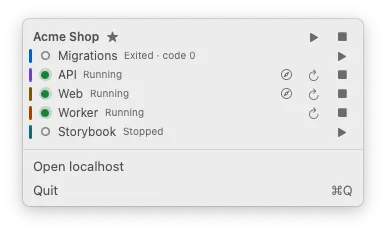
Closing the window doesn’t stop anything: your Services keep running, and the menu bar icon (the tray icon on Linux and Windows) shows them, with a red dot while one has Failed. Quitting asks first, then stops everything.